
Advance Employee Portal
Works for Both Internal and External/Portal Users
Any User you assigned/give access will have the App/Menu on Portal side
Thank You for choosing My Solution.
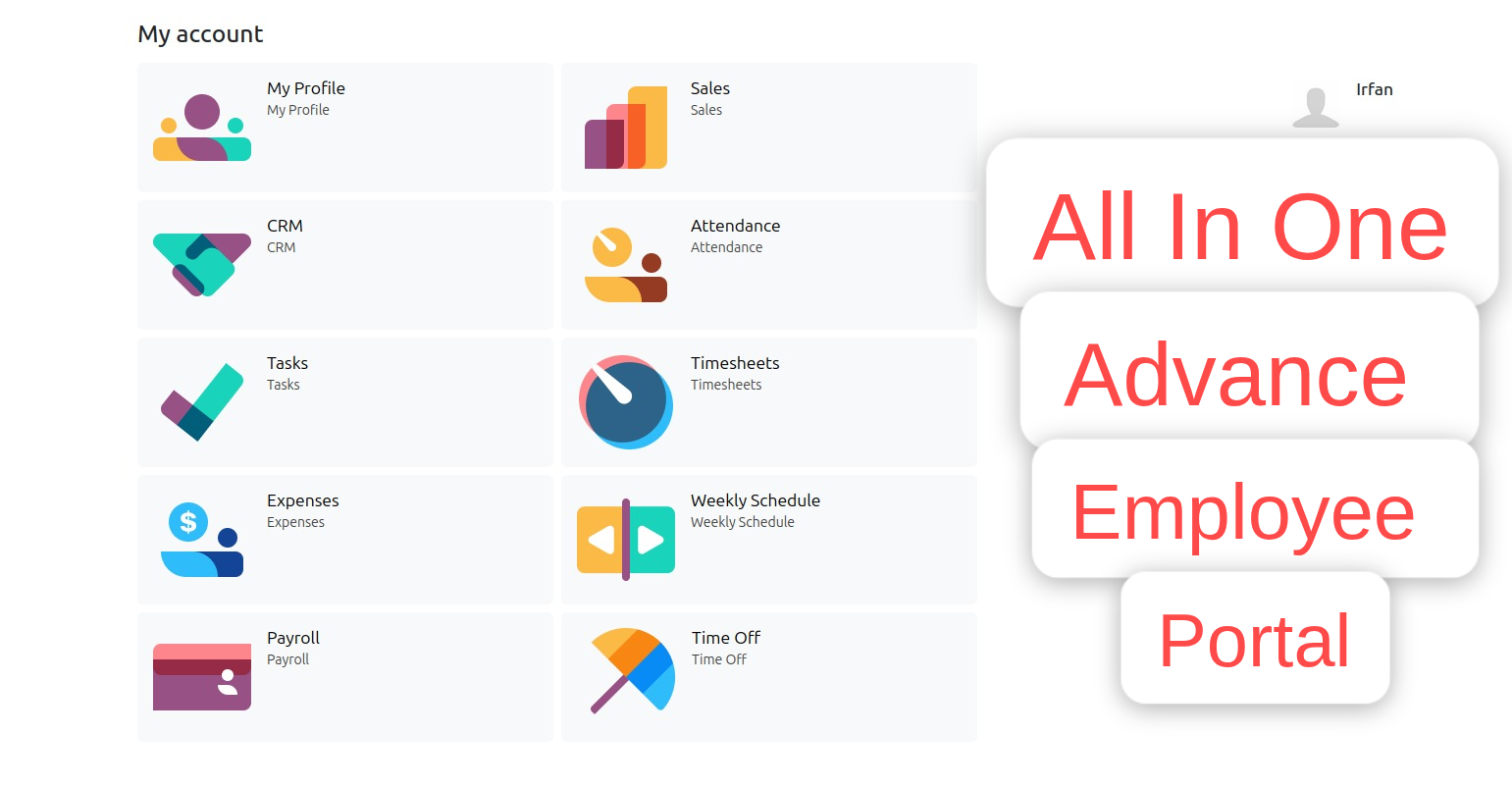
Once you install, you will get the below features:
Main Features ---> No Bankend Needed
Explore the key features available to Employees/Users from the portal
Employee Profile
Employee can view and edit OR add their Private Information, Resume,Experience, Skills.
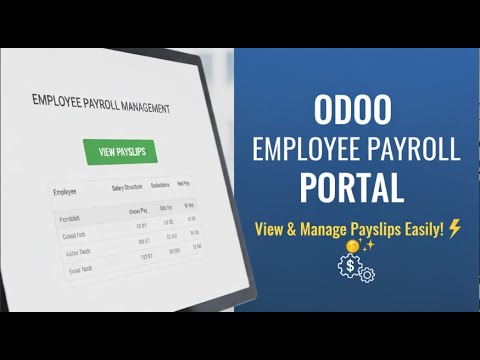
Payroll
Employees can view all own Payroll and can download PaySlips seamlessly.
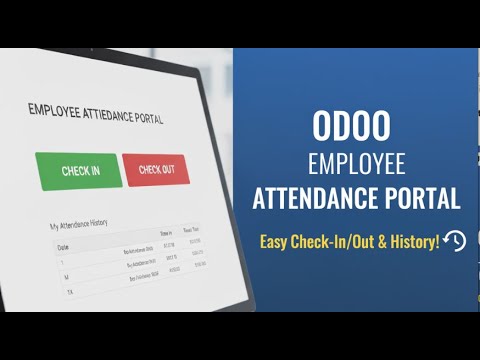
Attendance
Employees can check in, check out, and view attendance just like in backend.
Leaves / Time Off
Employees can view their time off records and request new leaves seamlessly.
Weekly Shift / Schedule
Employees can view and request shift schedules with an easy interface.
Tasks
Employees can view assigned tasks and update progress anytime.
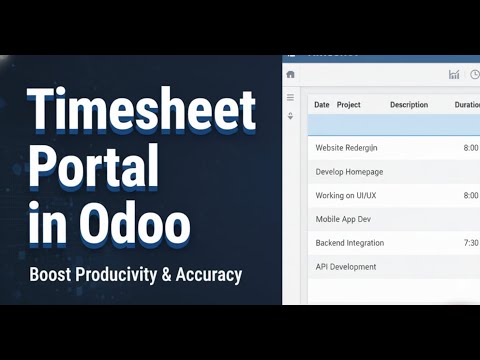
Timesheet
Fill Timesheet under Project/Tasks.
Expenses
Employees can record and submit expenses for approval with ease.
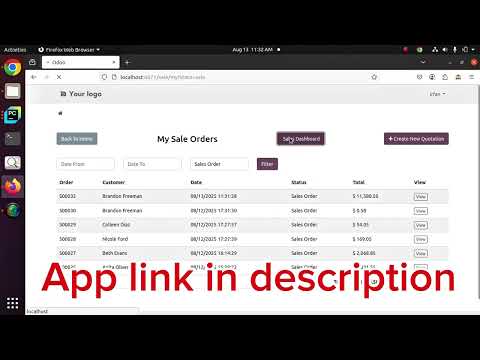
Salesperson / Customer
Salesperson can view dashboard and create/update quotations directly from the portal.
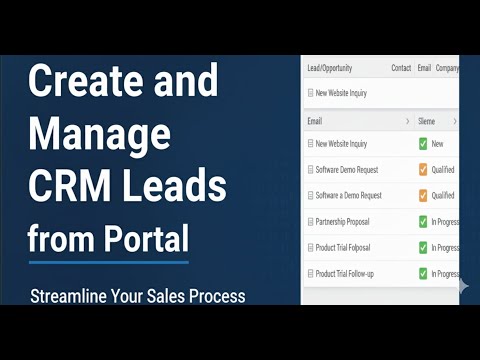
CRM / My Leads
Create, View, Update and Track your Leads.
Configuration
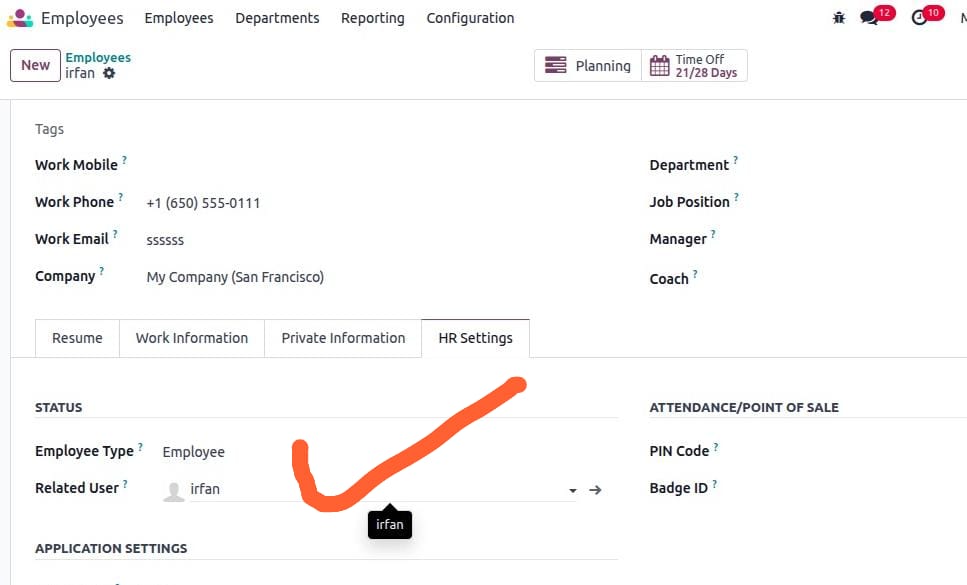
- Make sure the employee is linked with a portal user.
- Go to employee profile --> HR Settings tab --> select the portal user.
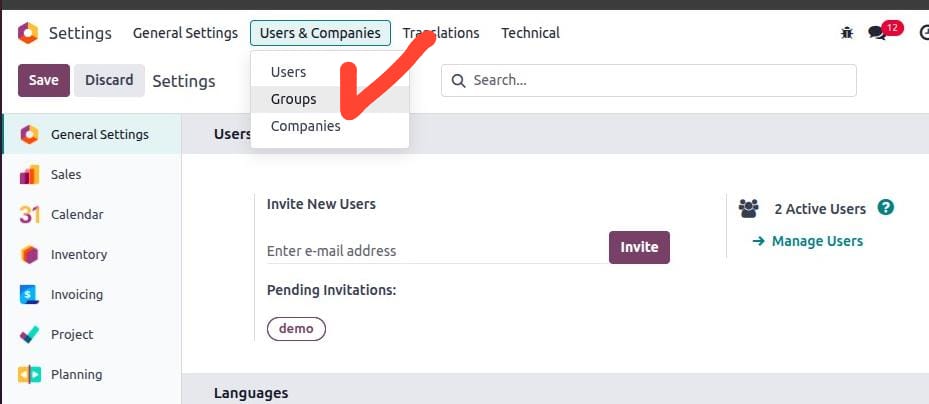
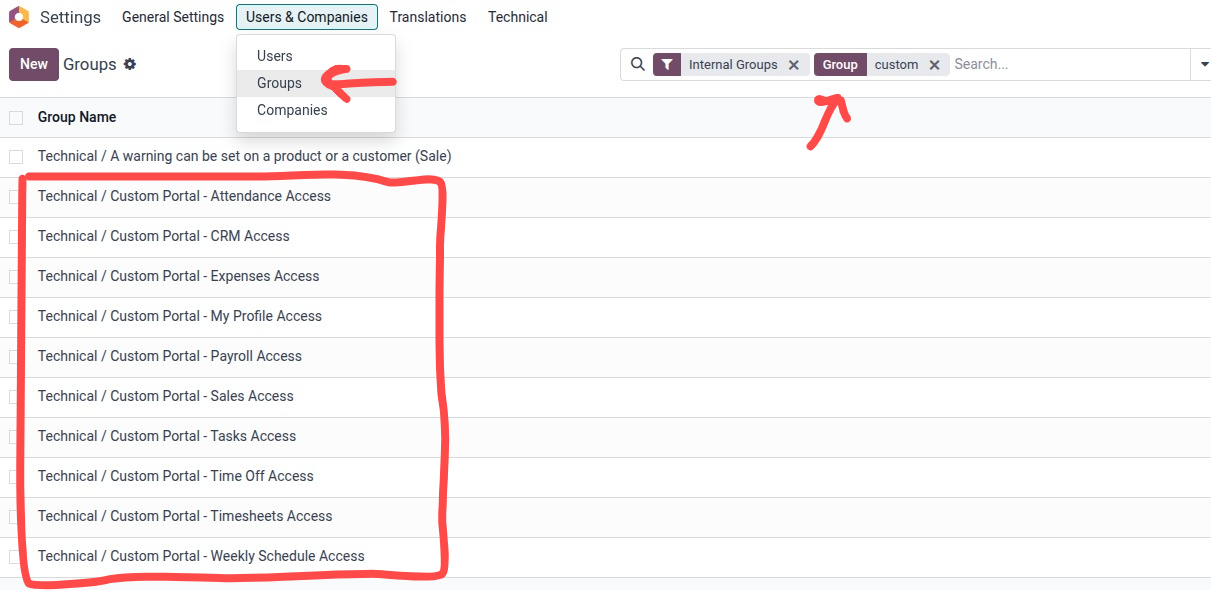
- Next, go to Settings --> Users & Companies --> click on Groups (developer mode activated).
- Search or select these groups:
- Custom Portal - Attendance Access
- Custom Portal - CRM Access
- Custom Portal - Expenses Access
- Custom Portal - My Profile Access
- Custom Portal - Payroll Access
- Custom Portal - Sales Access
- Custom Portal - Time Off Access
- Custom Portal - Tasks Access
- Custom Portal - Timesheet Access
- Custom Portal - Weekly Schedule Access
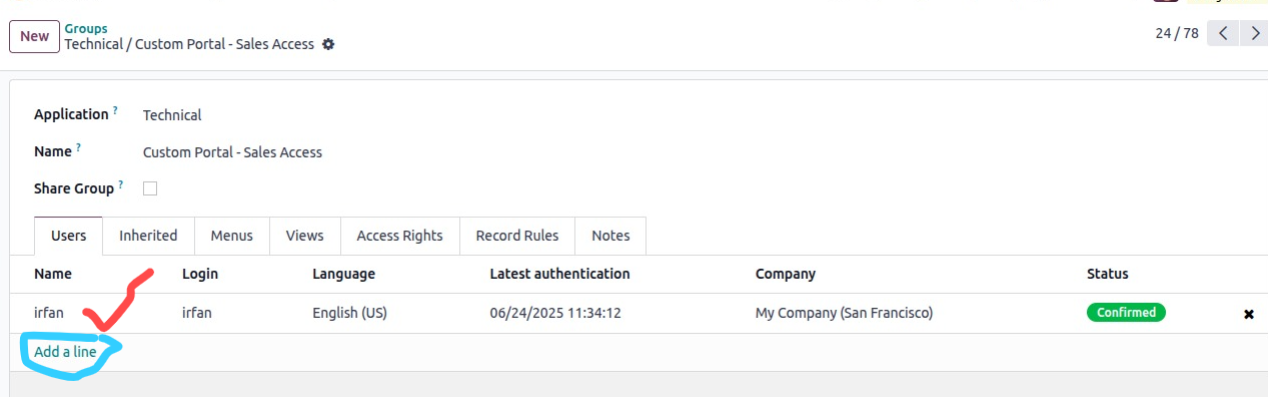
- Remember: only assigned group Apps/Menus will be visible to the user.
- Add users in the order line as many as you want.
- Now log in with the user to see the menu as below.
- Below are the visuals of configuration.
- How this all will work functionally please see the video below for each menu for step by step
- To show the default Odoo portal for Customer/Vendors etc assign the below group to the their User Custom Portal - Unhide Odoo Portal Apps Access
Note: For each one please find the video below. If need help OR support let me know.
Employee Payroll Portal Video
Click to watch on YouTube
My Time Off / Leaves Portal Workflow Video

Click to watch on YouTube
Employee Attendance Portal Video
Click to watch on YouTube
Weekly Schedule Portal Workflow Video

Click to watch on YouTube
Expense Portal Workflow Demo Video

Click to watch on YouTube
Projects Tasks Portal Workflow Demo Video

Click to watch on YouTube
My Sale Portal and Dashboard Portal Demo Video
Click to watch on YouTube
Timesheet Portal Demo Video
Click to watch on YouTube
CRM Portal Workflow Video
Click to watch on YouTube
Employee Profile Portal Workflow Video
Click to watch on YouTube
Specifications
| Version | 15.0, 16.0, 17.0, 18.0, 19.0 |