All Apps
/
Expense Portal

Description:
Employee Expense Portal
Work on both Community and Enterprise
Works for Both Internal and External/Portal Users
Any User you assigned/give access will have the App/Menu on Portal side
Once you install, you will get the below features:
Main Features
- Employee can view and create/record new Expense
- Employee can also submit the invoice/bill receipt (multiple)
- Employee can submit and reset to draft
- Employee can edit and refuse
- Fully integrated with backend
Configuration
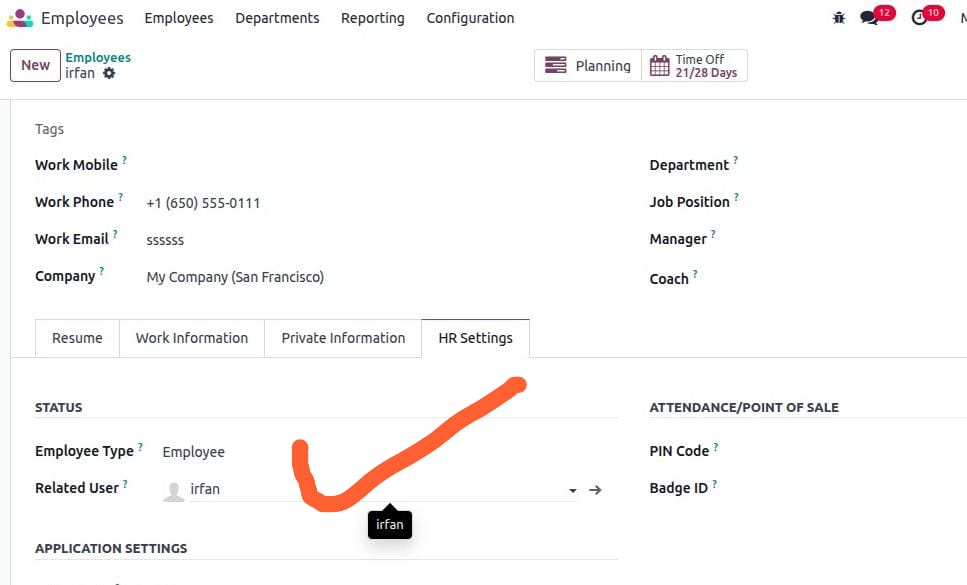
- Make sure the employee is linked with User; check and confirm.
- Go to Employee → open profile → HR Settings tab.
- In the user field, select the User.
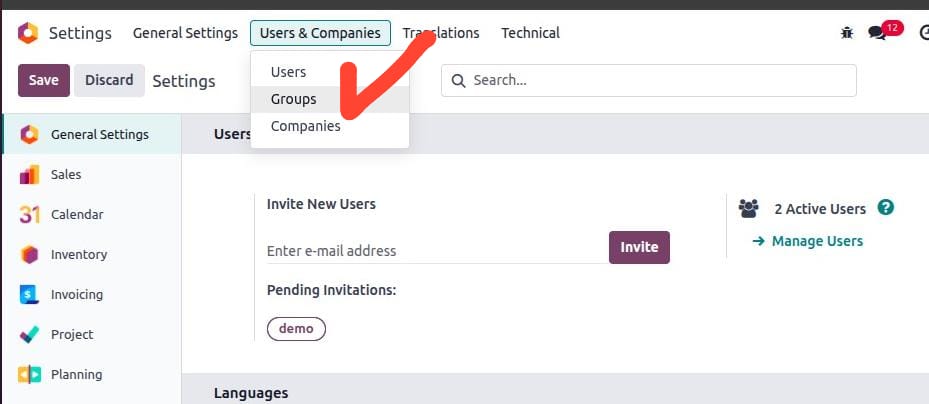
- Next go to Settings → Users & Companies → click on Groups (developer mode must be activated).
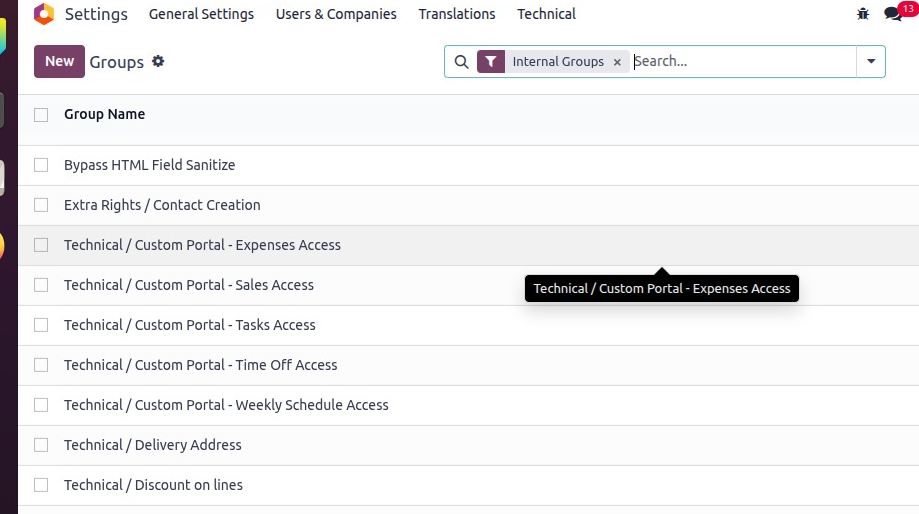
- Search or select the Group ['Custom Portal - Expenses Access'] and click to open.
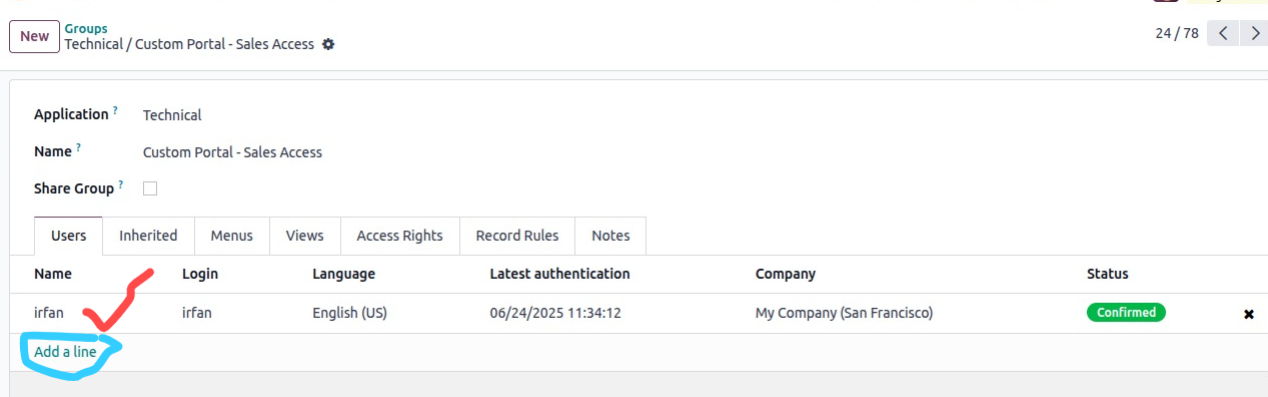
- Add users in the order line.
Remember only assigned group menus will be visible to the user
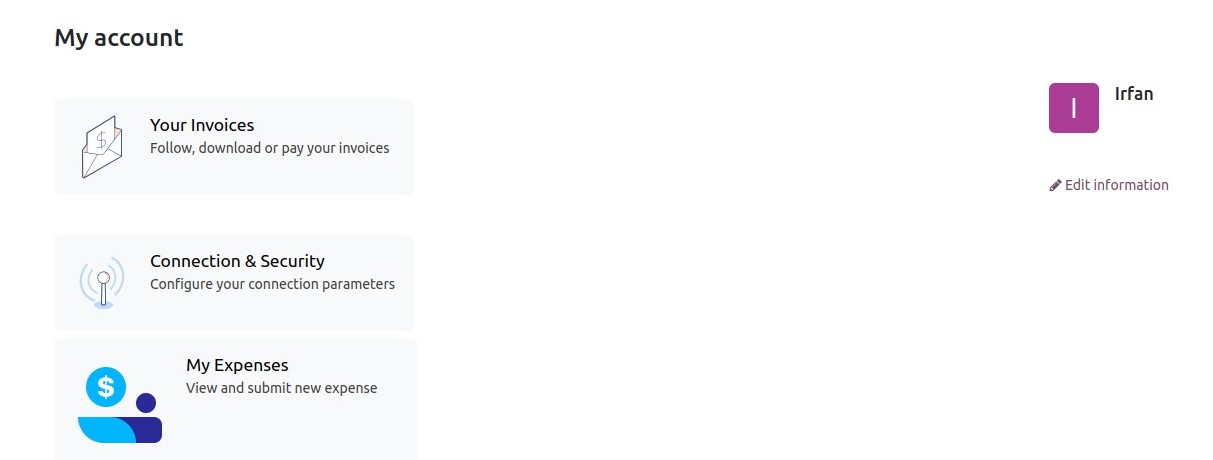
- Open expense by clicking on it; default view for expenses.
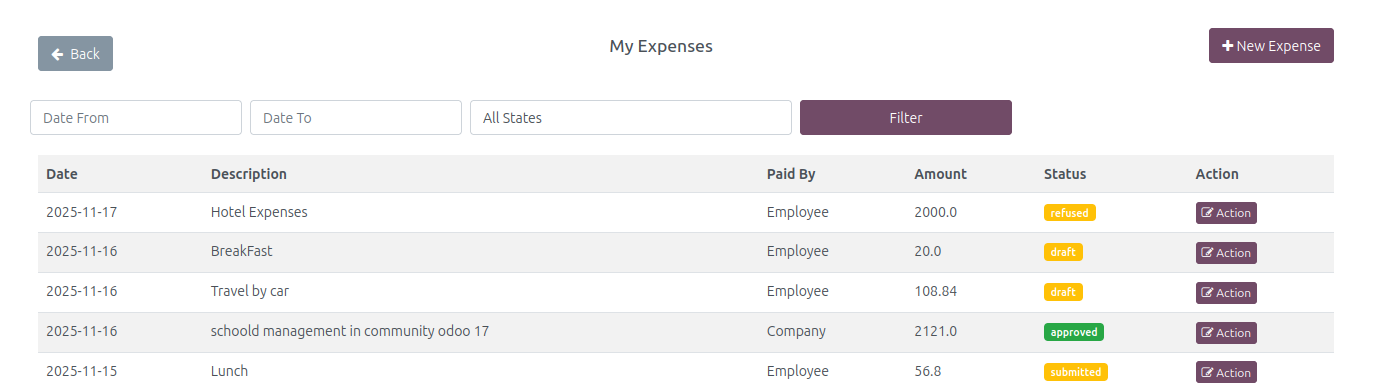
- On the top right corner, click Record New Expense.
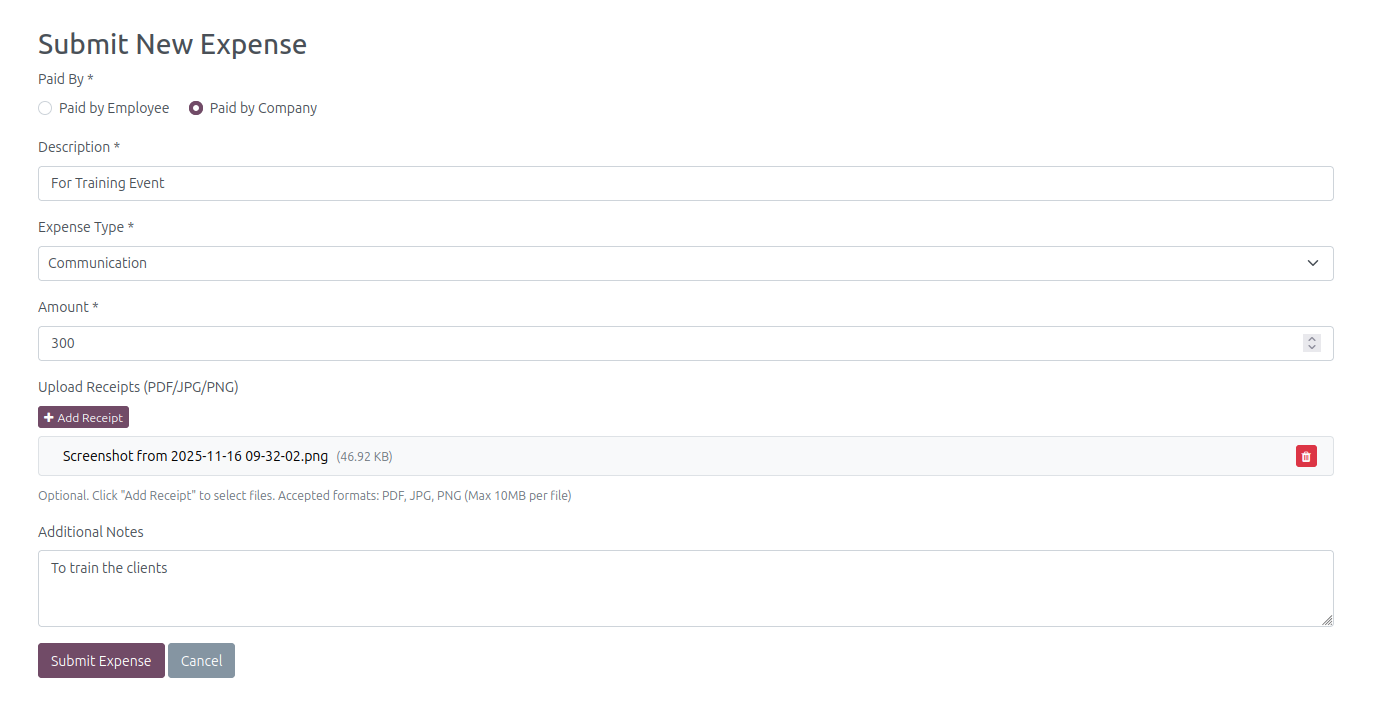
- Fill all fields and attach bill/invoice.
- Click Expense Submit. Your expense is recorded successfully.
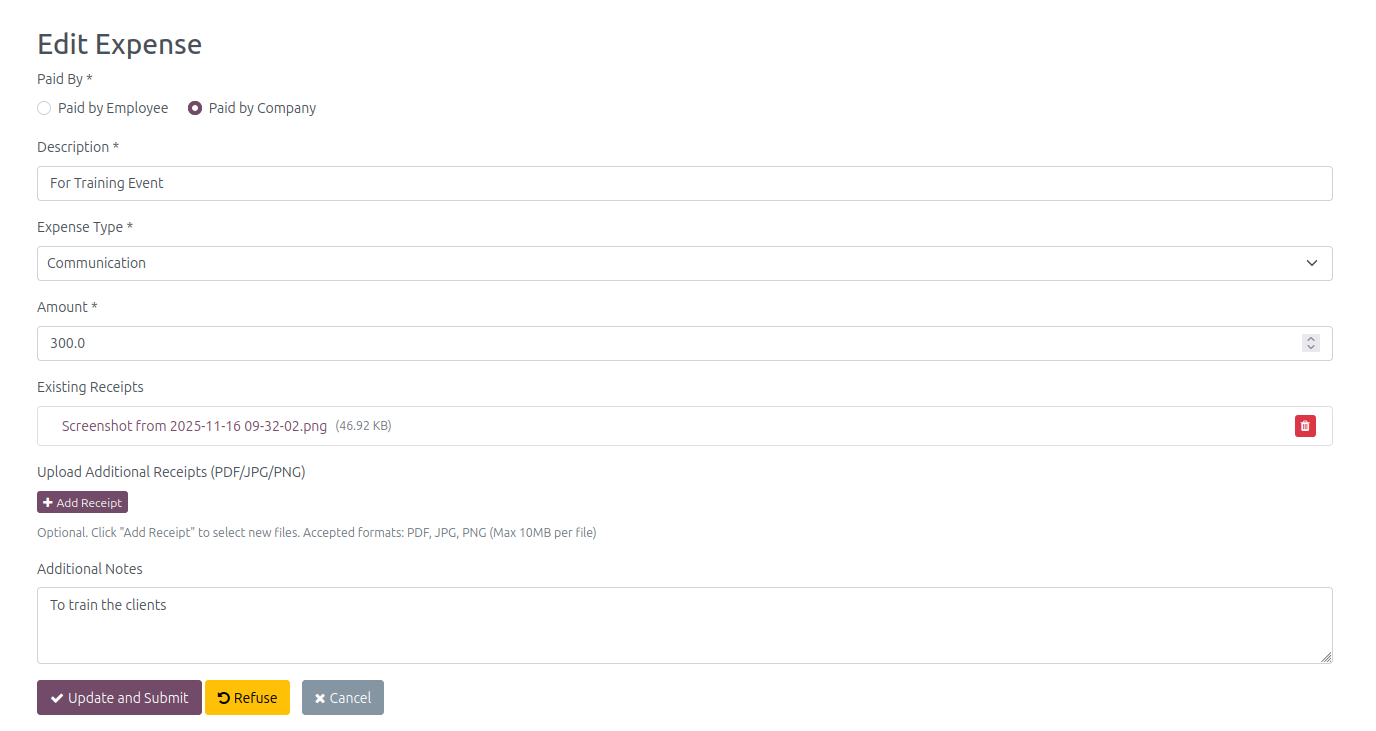
- To edit OR submit/Update/Refuse Expense.
- Click on the action which you want it will open the below view.
- After Update pressUpdate/Submit OR Refuse.
- the Reset option will show when the expense is submitted.
- Here is the backend result.
- Open in form view.

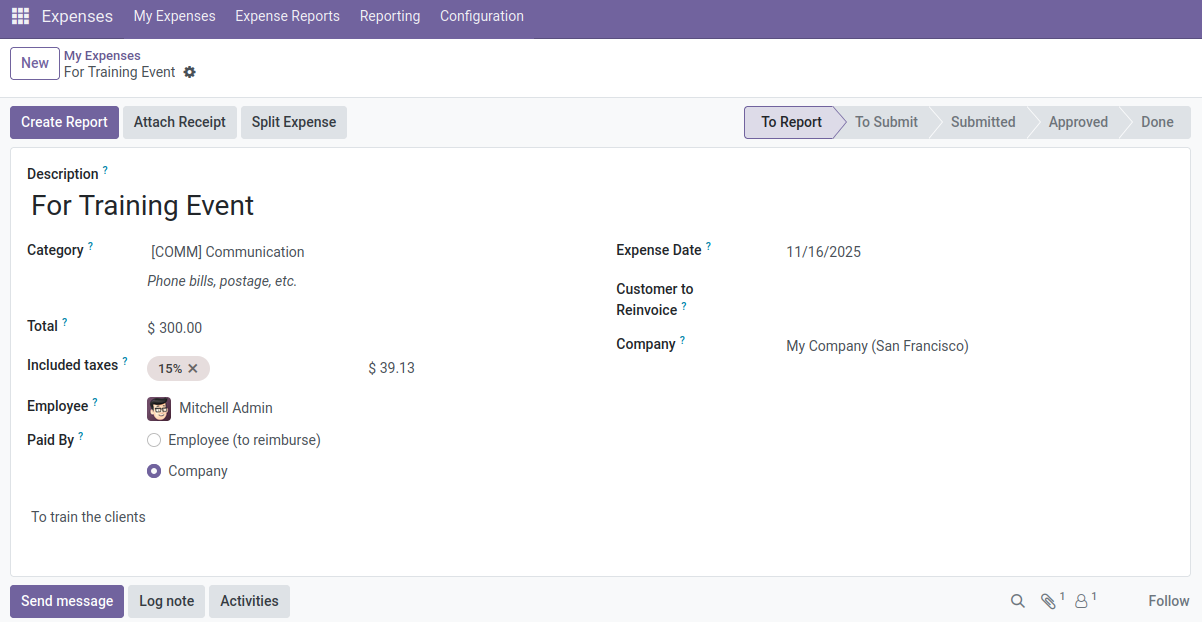
- The Update/Submit/Refuse works like in backend
- Note: Once Approve OR Refused then its becomes readonly.
- Below is the live demo video:
Attendance Portal Demo Video

Click to watch on YouTube