All Apps
/
Timer in Timesheet and Task Portal

Description:
The Extend Odoo Timesheet and Tasks Portal module enhances Odoo's native portal capabilities by allowing employees and portal users to Start and Stop timesheets directly from tasks. It supports both internal and external users, enabling real-time time tracking, editing of non-validated timesheets, and task assignment to portal users. Fully integrated with Odoo Community and Enterprise.
Extend Odoo Timesheet And Tasks Portal
Works for Both Internal/Employee and Customer/External/Portal Users
Allow Employee to Start and Stop and view and Edit(if timesheet not validate)
After installation it will extends the Odoo existing Timesheets and Tasks Portal to add the below features:
Main Features
- This module extends the existing Odoo Portal functionalities
- Using this module you can assign portal user to tasks in backend
- Employee can Start and Stop Timesheet for tasks directly from Portal
- Start and Stop buttons on both Timesheet and Tasks
- Employee can view only their own timesheets
- Customer can view All
- Update and write the description using the Edit/View option On Timesheets
- View Timesheet
- Edit / Update Timesheet
- Fully Integrated
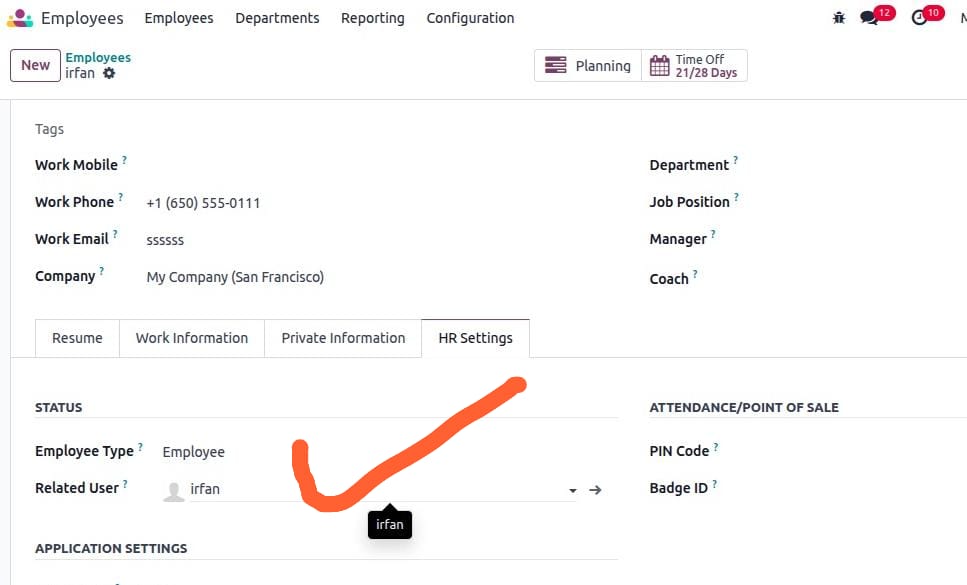
Configuration for Employee only not for Customer
- Make sure the employee is linked with the user; check and confirm.
- Go to Employee -> open profile -> HR Settings tab.
- In the user field, select the user.
Let's Go to Portal side
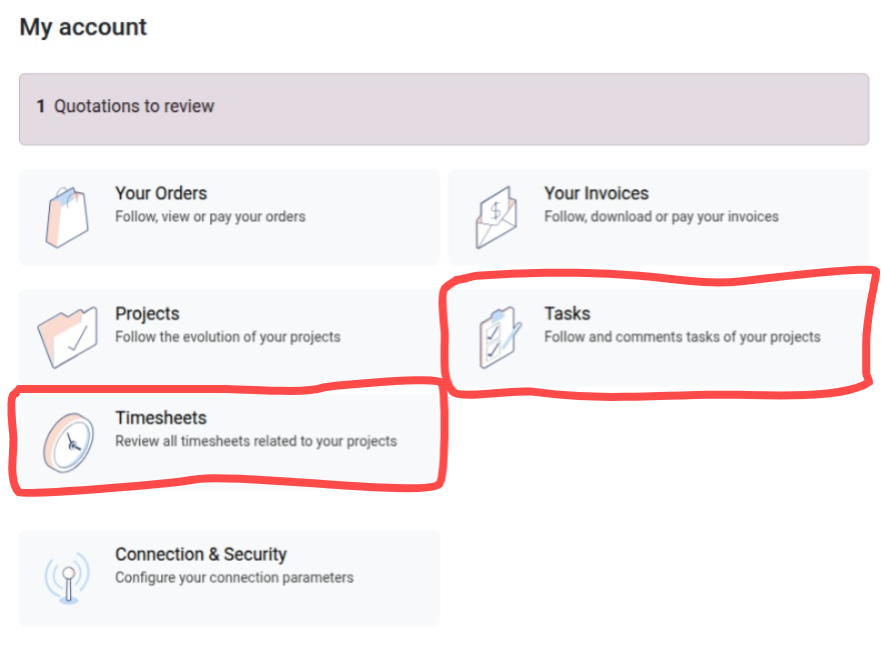
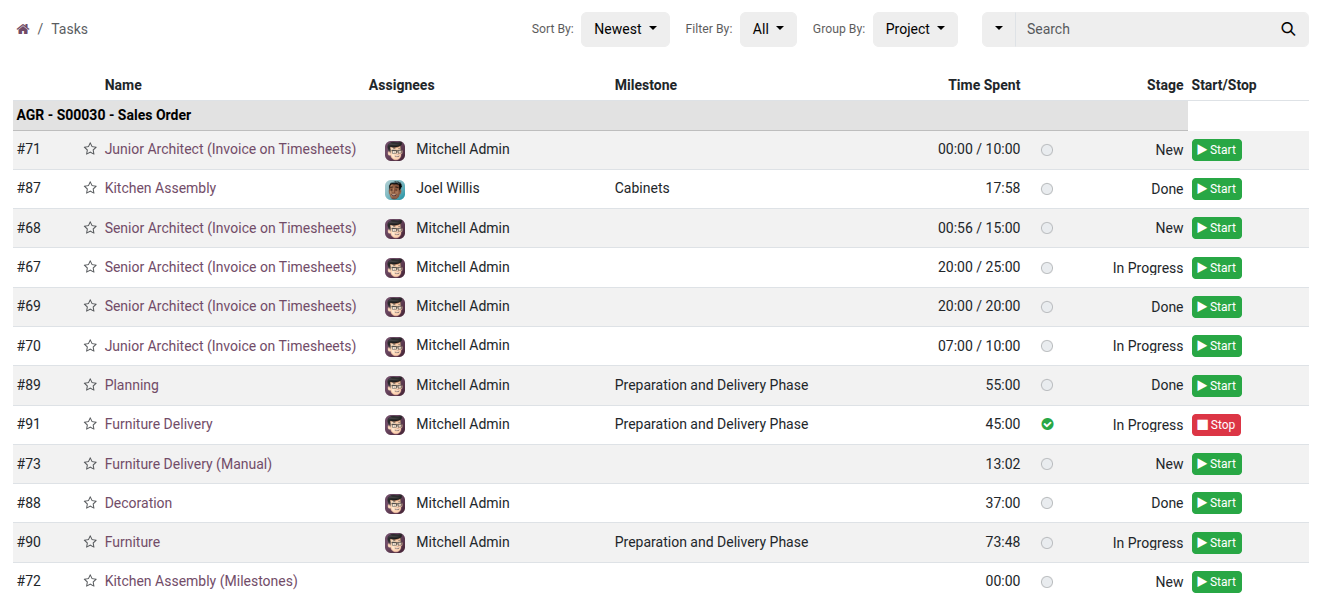
Start working on Task
Click the Start button in that Task
When finished Click Stop button and it will auto calculate the total working hours
Timesheet View
Click the Start button in that Timesheet it will start new timesheet for the same task
When finished Click Stop button and it will auto calculate the total working hours
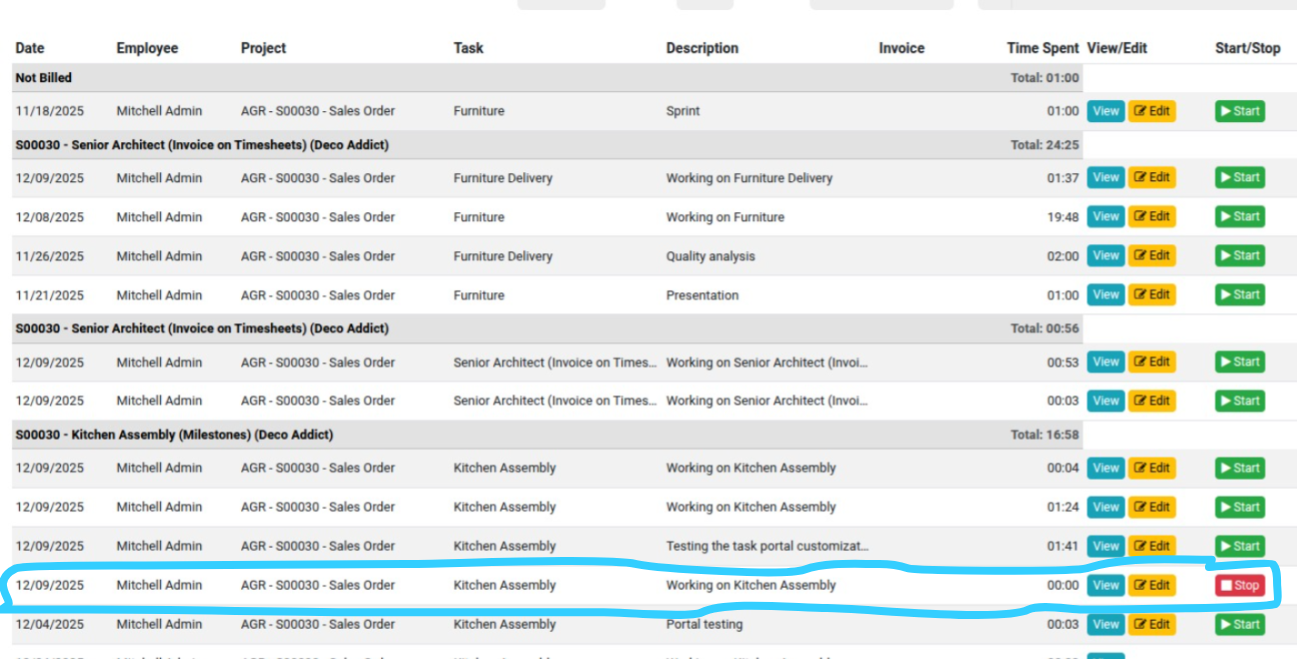
Backend View Now Timesheet Running
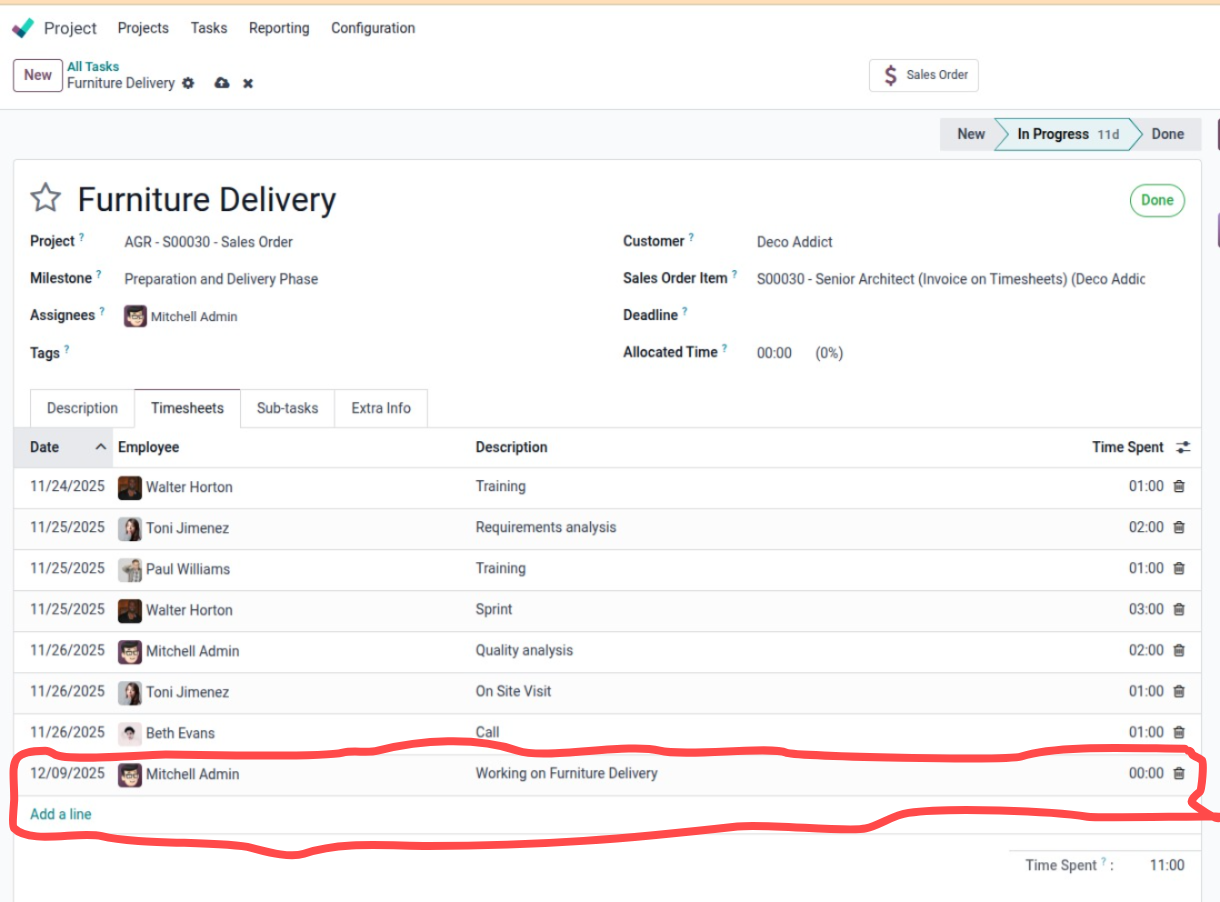
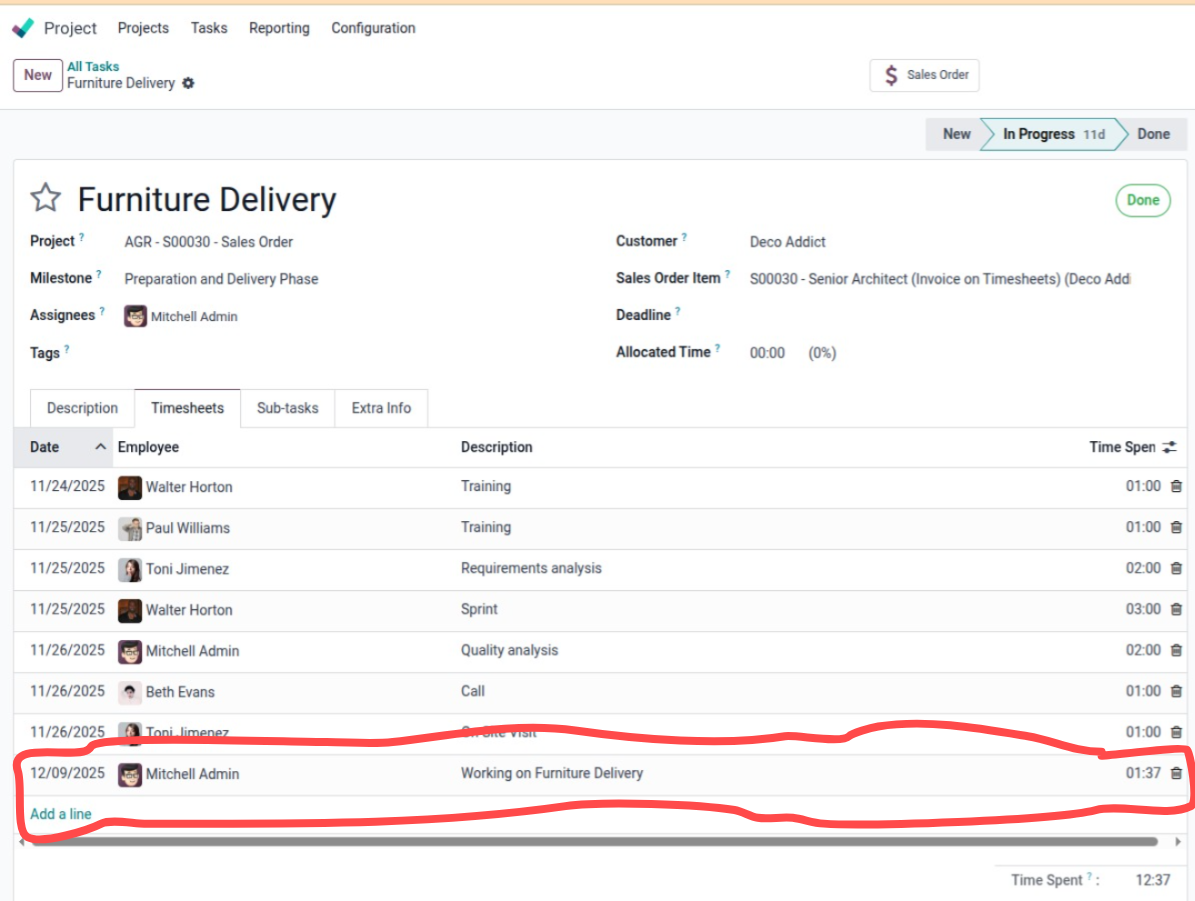
Backend View Now Timesheet Stoped
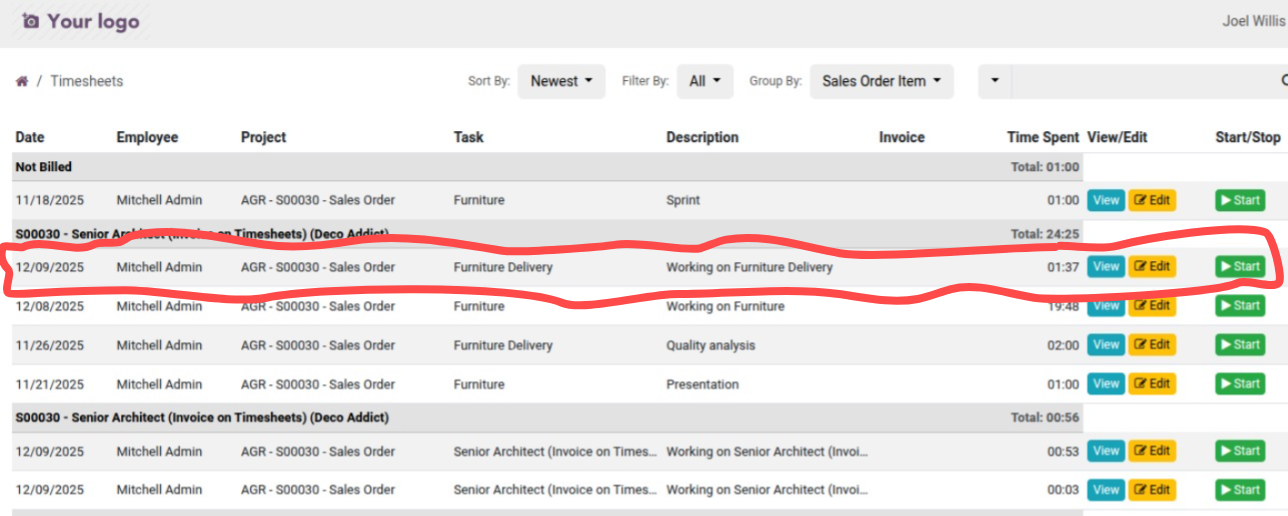
Portal View Now Timesheet Stoped
Note: Once the Timesheet Validated then Employee can't Edit that timesheet
View Timesheet
To view click on the view icon(button) in each record
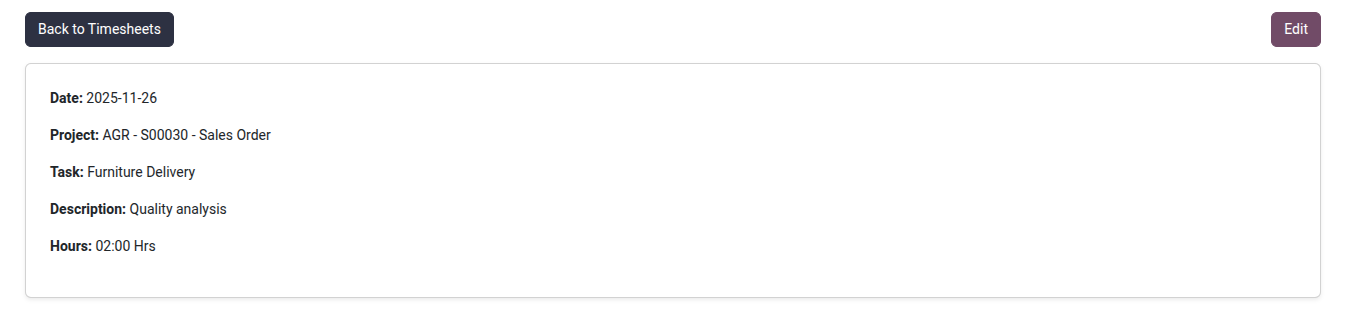
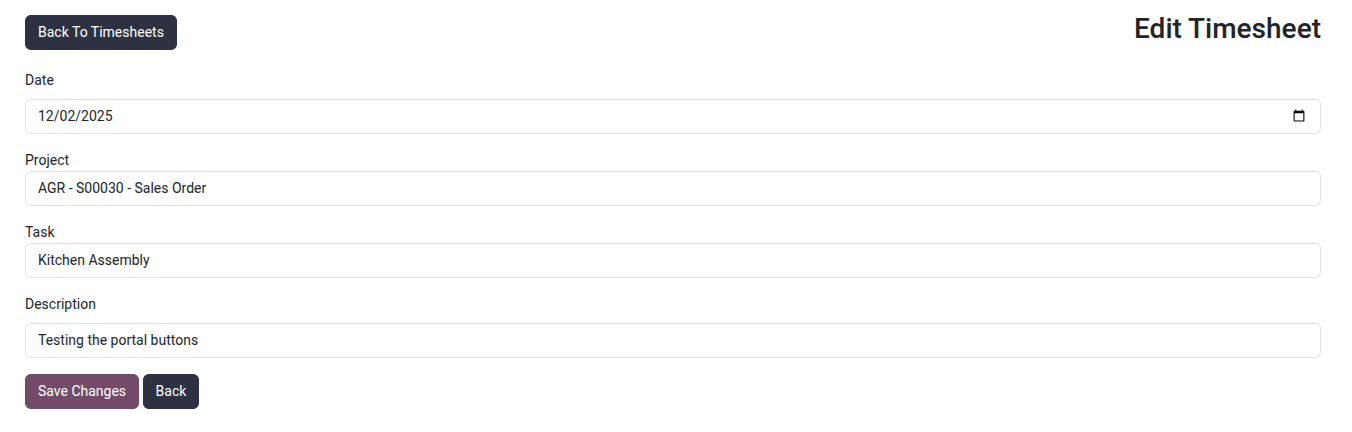
Edit Timesheet
To Edit click on the Edit icon(button) in each record